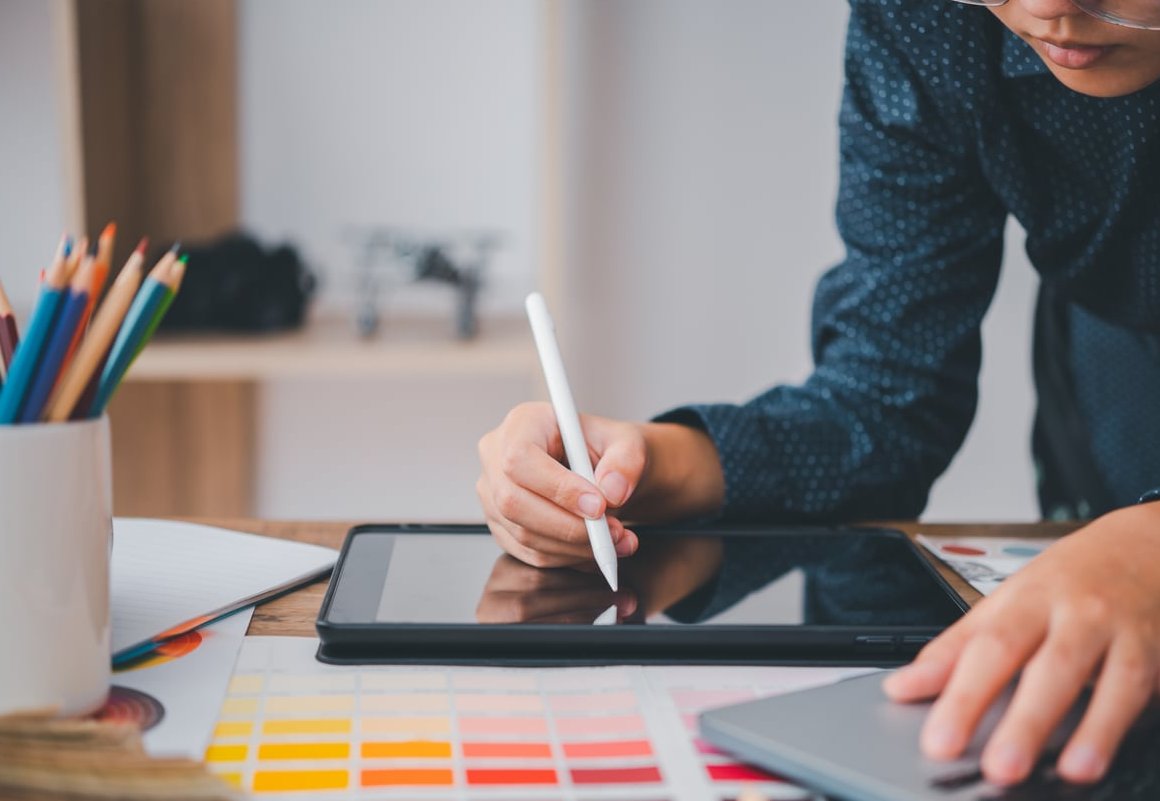
Most guides that rank for sketch to line art hand you a one-click converter and call it a day. Those tools have their place, but they cannot fix a wobbly stroke, they flatten your line weight into one boring width, and they leave micro-gaps that break your fill bucket the moment you try to colour. If you want line art that looks intentional, you still have to ink it yourself.
This is the exact 6-step workflow we use at Kyanite Studios to take a rough, messy sketch and turn it into clean, print-ready line art in Procreate, Photoshop or Clip Studio Paint. Every step targets one of the three beginner killers: shaky lines, uneven tapering, and gaps that leak paint everywhere.
Before you start: AI line art converters vs manual inking
Let’s settle this quickly, because it changes how you use this tutorial.
| Approach | Best for | Weakness |
|---|---|---|
| Online sketch to lineart converter / AI generator | Coloring pages, quick mockups, extracting outlines from a photo | No line weight hierarchy, broken or fuzzy edges, no control over tapering |
| Threshold / Levels cleanup of a scan | Traditional ink already drawn on paper | Amplifies pencil noise, cannot rescue a rough sketch |
| Manual inking on a layer above the sketch | Illustration, character design, comics, commercial work | Takes practice (this article is the shortcut) |
Rule of thumb: use a converter when the sketch is already finished ink, and ink manually when the sketch is still rough. A rough sketch has overlapping search lines, and no algorithm can guess which of those five lines you meant to keep.
Step 1: Import or scan your rough sketch properly
Garbage in, garbage out. Your line art quality is capped by the sketch file you start from.
If you are scanning a paper sketch
- Scan at 600 dpi grayscale, not 300. You will downsample later, and the extra data keeps thin pencil lines readable.
- Save as PNG or TIFF. JPEG compression creates grey halos around pencil strokes.
- Flatten the page under a book for a minute before scanning so the paper texture stays uniform.
If you are photographing with a phone
- Shoot in diffuse daylight, near a window, never with direct flash.
- Hold the camera parallel to the page and crop tight, then use the perspective or transform tool to square the edges.
- Run a quick contrast pass so the pencil is clearly darker than the paper.
Clean up the sketch before you ink
- Open the sketch in your app of choice.
- Photoshop: Image > Adjustments > Levels. Drag the white input slider left until the paper turns pure white, then nudge the black slider right until the pencil reads clearly.
- Clip Studio Paint: Edit > Tonal Correction > Level Correction, then Edit > Convert Brightness to Opacity so the paper becomes transparent.
- Procreate: Adjustments > Curves, pull the highlights up. Then set the sketch layer blend mode to Multiply so the white paper disappears visually.
Canvas size that will not bite you later
Set your working canvas to at least 3000 x 3000 px at 300 dpi for a single illustration. Zooming in on a small canvas is the number one hidden cause of jagged, pixel-crunchy line art. In Procreate, remember that bigger canvases reduce your layer count, so 4000 x 5000 px is a sensible ceiling on most iPads.
Step 2: Set up your layers and sketch opacity
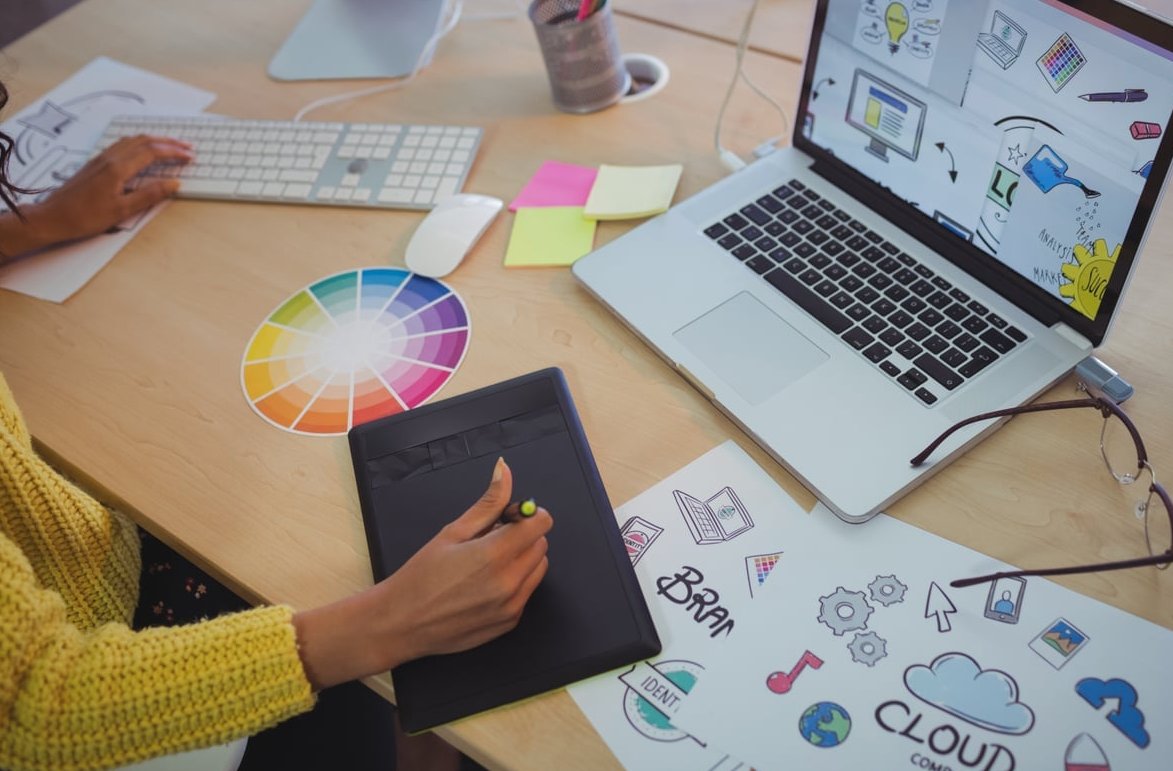
This is the boring step that solves half of all beginner problems. Build the stack from the bottom up:
| Layer | Setting | Why |
|---|---|---|
| Background | Flat mid grey or off white | Pure white hides gaps in your outline |
| Rough sketch | Multiply, 20 to 30 percent opacity, locked | Visible enough to follow, faint enough that you commit to your own line |
| Line art (main) | Normal, 100 percent | Your final inks |
| Line art (details) | Normal, separate layer | Hair, folds, texture you may want to erase without touching the silhouette |
Tint your sketch blue
Old animation trick that still works. Lock the sketch layer transparency and fill it with a light blue or cyan. Because the hue is different from your black ink, your eye instantly separates sketch from line, and you stop accidentally tracing construction lines. The topic gets a thorough treatment elsewhere.
- Procreate: tap the layer > Alpha Lock, then drag a colour onto it.
- Photoshop: Lock transparent pixels, then Edit > Fill, or add a Hue/Saturation layer clipped to the sketch.
- Clip Studio Paint: set the layer colour to blue in the Layer Property panel (one click).
Fix the sketch before you ink, not after
Use Liquify, Transform or the lasso to correct anatomy, symmetry and placement while it is still a sketch. Fixing a jaw line after you have inked it costs ten times more time.
Step 3: Dial in the right stabilizer settings
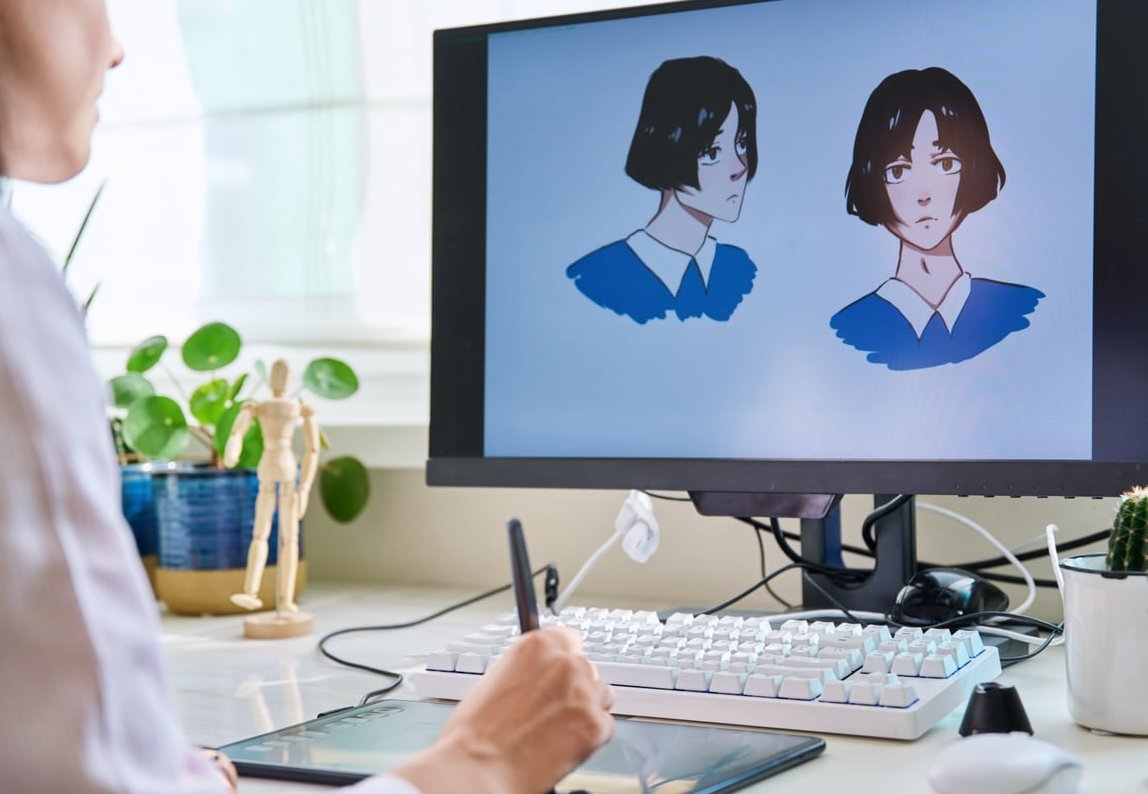
Wobbly strokes are almost never a talent problem. They are a settings and posture problem. Every major app has smoothing, but the naming is different, so here is the translation table with starting values that actually work.
| App | Where to find it | Recommended start |
|---|---|---|
| Procreate | Brush Studio > Stabilization (StreamLine, Stabilization, Motion Filtering) | StreamLine 25 to 40 percent, Stabilization 10 to 20 percent, Motion Filtering low |
| Photoshop | Brush tool options bar > Smoothing (plus the gear icon for modes) | Smoothing 15 to 25 percent, enable Adjust for Zoom, try Pulled String Mode for long curves |
| Clip Studio Paint | Tool Property > Stabilization, and Correction > Post correction on vector layers | Stabilization 8 to 15, Post correction on for vector inking |
Do not overdo it
Above roughly 60 percent smoothing your stroke starts lagging behind the pen and the line ends drift past where you lifted. That drift is what produces those weird hooks at the end of a curve. Stabilizer should remove tremor, not draw the line for you.
Brush choice matters as much as smoothing
- Procreate: Monoline for perfectly even weight, Technical Pen or Studio Pen for tapered inks.
- Photoshop: a hard round brush with Shape Dynamics > Size Jitter: Pen Pressure and 0 percent hardness jitter.
- Clip Studio Paint: G-Pen for expressive tapers, Mapping Pen for fine detail, Marker for flat weight.
Turn pressure size on and pressure opacity off. Opacity-driven brushes create semi transparent line edges, and semi transparent edges are exactly what makes the fill bucket leave ugly white fringes later.
Step 4: Ink with confident strokes (the fix for tapering and wobble)
Now the drawing part. Technique beats settings here.
- Draw from the elbow and shoulder, not the wrist. Wrist strokes produce short arcs that never connect smoothly. For long curves, lock your wrist and move your whole forearm.
- One stroke, one motion. Move fast and commit. If it fails, undo and redo it rather than patching it. Patched lines are why line art looks lumpy.
- Rotate the canvas constantly. Everyone has a comfortable stroke direction, usually pulling toward yourself. Rotate the artwork so every line becomes that comfortable stroke.
- Zoom out to check, zoom in to draw. Work at 50 to 100 percent for large shapes so you do not turn a smooth curve into twelve tiny segments.
- Control the taper on purpose. Light pressure to enter, more pressure through the middle of the form, light pressure to exit. Uneven tapering usually means you are decelerating mid stroke instead of at the end.
- Overshoot intersections. Let lines cross slightly past each other, then erase the overhang. This guarantees closed corners, which matters enormously in Step 6.
The 20 minute drill that fixes shaky lines for good
- Ten minutes of long straight lines across the whole canvas, no stabilizer.
- Five minutes of ellipses and circles in both directions.
- Five minutes of tapered strokes: thin, thick, thin, repeated.
Do this before each session for two weeks and your unassisted line quality will beat any AI line art generator output, because yours will carry intent.
Step 5: Build a line weight hierarchy
Flat, uniform line art looks like a coloring book. Varying weight is what makes it look professional, and it is the single biggest visible difference between manual inking and an automated sketch to line art conversion.
| Element | Relative weight | Example |
|---|---|---|
| Outer silhouette | 100 percent (thickest) | Body outline, object edge against background |
| Overlapping forms | 70 percent | Arm crossing the torso, sleeve over wrist |
| Interior details | 40 percent | Facial features, folds, buttons |
| Texture and pattern | 20 to 25 percent (thinnest) | Fabric weave, hair strands, wood grain |
Two easy shortcuts
- Thicken shadow sides. Pick a light direction and add weight to the lines facing away from it. Instant depth with zero shading.
- Thicken contact points. Where a foot meets the ground or a strap presses into a shoulder, add a small pool of weight.
In Clip Studio Paint, inking on a vector layer lets you adjust weight after the fact with the Correct Line Width tool, which is a lifesaver for comics. Procreate and Photoshop are raster, so plan the weights as you go or use a second pass on a duplicated layer.
Step 6: Close the gaps and test the fill bucket
You are not finished until the line art can be coloured without leaking. Do this test now, not three hours into rendering.
- Add a new layer below your line art.
- Pick a loud colour like magenta.
- Fill every enclosed region with the bucket tool.
- Any leak reveals a gap. Zoom in and close it with a stroke of the same brush.
App specific fill settings
Procreate
- Drag a colour onto the shape with ColorDrop. Before releasing, slide your finger left or right to tune the threshold.
- Keep threshold around 10 to 20 percent. Too high bleeds through thin lines, too low leaves a white halo.
- If a halo remains, use the Reference layer option so the fill reads your line art while painting on the layer below.
Photoshop
- Paint Bucket with Tolerance 32, Contiguous on, Anti-alias on, and All Layers sampling if you fill on a separate layer.
- To kill white fringes: Select the region, then Select > Modify > Expand by 1 or 2 px before filling.
- For many flats, the quickest route is Select Subject or the Object Selection tool, then fill inside the selection.
Clip Studio Paint
- Set your line art layer as a Reference Layer (the lighthouse icon).
- Use the Refer other layers fill tool and set Close gap to level 2 or 3.
- Increase Area scaling to 2 or 3 px so the colour tucks under the line.
- For tiny leftovers, the Fill up to the gap tool handles hair tips and lashes beautifully.
Final cleanup checklist
- Hide the sketch layer and look at the inks alone. Anything unreadable needs fixing.
- Flip the canvas horizontally. Errors in symmetry jump out immediately.
- Erase the overshoot at every intersection.
- Delete stray dots, usually pen taps you did not notice. In Photoshop, a quick pass with Filter > Noise > Dust & Scratches at radius 1 on a duplicate can help, but manual erasing is safer.
- Export a PNG with transparency for colouring, and a flattened copy for sharing.
Troubleshooting table: common sketch to line art problems
| Problem | Real cause | Fix |
|---|---|---|
| Wobbly, chicken scratch lines | Drawing slowly from the wrist, zoomed in too far | Zoom out, stroke from the elbow, add 20 percent smoothing |
| Lines hook at the end | Stabilizer set too high, stroke lag | Reduce smoothing, lift the pen while still moving |
| Uneven, blobby tapering | Pressure curve too aggressive | Flatten the pressure curve in brush settings, practise thin-thick-thin |
| Fill bucket leaks everywhere | Open gaps, semi transparent line ends | Close gaps manually, disable pressure opacity, use Close gap settings |
| White halo between line and colour | Anti-aliased edge pixels | Expand selection 1 to 2 px or raise Area scaling |
| Line art looks stiff and lifeless | Uniform line weight | Apply the hierarchy from Step 5 |
| Jagged, pixelated curves | Canvas resolution too low | Restart at 300 dpi and 3000 px minimum, or ink on a vector layer |
How long should this take?
For a single character at A4 size, budget roughly 45 to 90 minutes of inking once the workflow is familiar. Your first few attempts will take longer, and that is normal. The time savings come later, in colouring, because gap-free line art with a clean weight hierarchy fills in minutes instead of being patched pixel by pixel.
FAQ
Can I convert a sketch to line art automatically?
Yes, with online converters and AI line art generators, and they are genuinely useful for coloring pages, quick previews or extracting outlines from a photo. They are not a substitute for inking a rough sketch, because they cannot choose which construction line was the correct one or where the line should be thicker.
Which app is best for sketch to line art?
Clip Studio Paint if you want the strongest inking tools, vector layers and the best gap closing. Procreate if you work on iPad and want speed and comfort. Photoshop if you are already in an Adobe pipeline and need photo cleanup in the same file. All three can produce identical quality results.
What opacity should my sketch layer be?
Between 20 and 30 percent, set to Multiply, and ideally tinted blue. If you can read every detail effortlessly you will trace timidly, which produces wobbly lines.
Should I ink on one layer or several?
At minimum two: one for the main silhouette and structural lines, one for details such as hair, folds and texture. For characters, many artists also separate face, body and props so each can be edited without redrawing the rest.
How do I stop the paint bucket from leaking?
Three things, in order: turn off pressure-driven opacity so line ends are fully opaque, run a magenta fill test to hunt down open gaps, then enable Close gap in Clip Studio Paint, adjust the ColorDrop threshold in Procreate, or expand the selection by 1 to 2 px in Photoshop. Related reading: Free Picture Stencil Maker.
Is a drawing tablet with display necessary?
No. A standard pen tablet works perfectly for line art once you retrain hand and eye coordination, usually within a couple of weeks. Pen pressure sensitivity matters far more than having a screen under your hand.
Can I ink directly without a sketch?
Once your confidence and construction skills are solid, yes, and it produces livelier lines. For anything with complex anatomy, perspective or client approval, the sketch stage stays cheaper than reinking a mistake. Related reading: Photo to Line Art Converter App.
Wrapping up
A reliable sketch to line art workflow is not a filter, it is a sequence: clean the sketch, stack the layers, set sensible stabilization, stroke with confidence, vary the weight, then prove the result with a fill test. Run those six steps on your next three drawings and the wobble, the odd tapers and the leaking buckets will stop being an issue.
Want us to handle inking, character design or full illustration production for your project? Get in touch with the team at Kyanite Studios and tell us what you are building.